
Managing an account
Clicking an account from the dashboard takes you to that account's detail page: the list of its operations, along with shortcuts to related features (automatic transfers, import, statistics, budgets, transfer) and, just below, the compact list of the account's budgets.
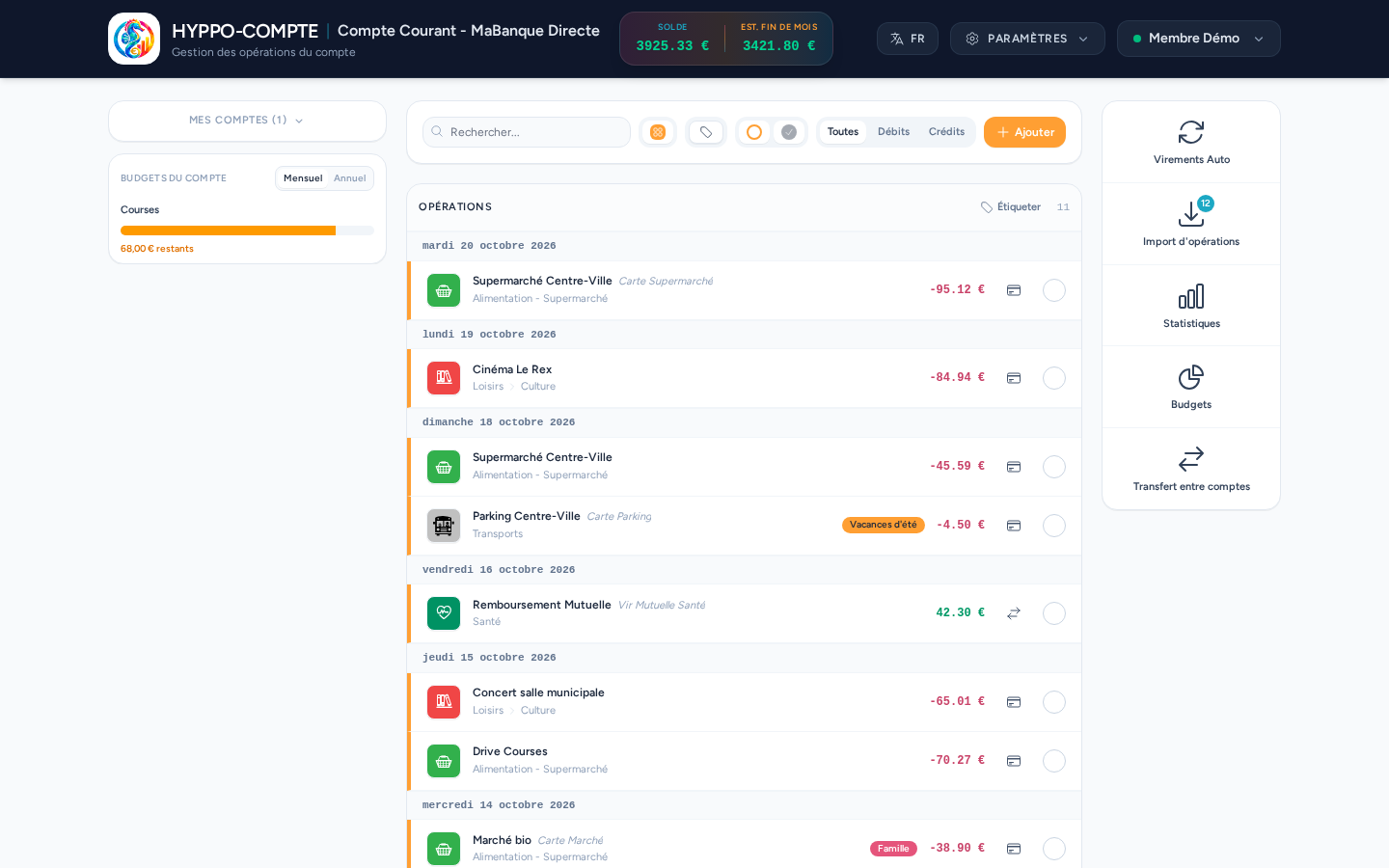
The balances panel
Two amounts are shown at the top of the page, in the account's currency:
- the current balance;
- the end-of-month estimate, which includes unreconciled operations due before the end of the month as well as automatic transfers still to come.
Both are colored according to their sign (positive, negative or zero).
My accounts
The left-hand column contains the list of all your active accounts with their respective balance, which lets you switch from one to another in a single click — the account currently being viewed is highlighted. This list is collapsed by default (the current account is already shown at the top of the page): click its My accounts title to expand it; your choice is remembered. Closed accounts don't appear here: to reach them, go through the dashboard.
Below this list, the column shows the account's budgets. It stays fixed while you scroll the operations, and scrolls by itself when its content is taller than the window.
Search and filter
The search bar at the top of the list filters operations by name, category, tags or amount: typing 38.44 (or 38,44, or 1 076) finds the operations whose amount contains that number, debit or credit alike. The search is partial, as it is for the name: 38 also finds 138.00. Quick filters let you refine the display:
- by category, using the same picker used to create or edit an operation (see below), but with several categories at once; the subcategories are not included automatically, tick them as well;
- by tag, with several tags at once (operations carrying at least one of them); this filter only appears once at least one tag exists;
- by reconciled / unreconciled status — this filter only appears if reconciliation is enabled for this account; its two checkboxes are preset according to the default preferences defined on the account's form, but can be changed on the fly here without altering that default;
- between All, Debits and Credits.
List of operations
Operations are grouped by value date, most recent first. The Show 100 more operations button at the bottom of the list loads more without reloading the page.
Adding and editing an operation
The Add button opens the operation creation form; clicking an existing operation opens the same form to edit it. It lets you set:
- the operation's name;
- the amount, in the account's currency;
- the value date;
- the operation date and reconciled status, if these options are enabled on the account's form;
- the operation type (card, cheque or transfer), if this option is enabled on the account's form;
- the category, using the same picker as the category filter;
- the tags, to pick or to create on the fly;
- free notes and attachments (invoice, receipt, warranty).
While editing, the Delete button permanently removes the operation after confirmation.
Card owner
The "card owner" field exists on an operation, but is only filled in when importing a statement — it cannot be edited manually from this form.
The Tag all button, in the list header, adds or removes tags on every operation the filters display.
Importing a bank statement
Rather than entering your operations one by one, you can directly import a bank statement from the Import operations shortcut in the Services menu — a badge shows the number of lines already imported and awaiting validation. This shortcut only appears if an import template is configured on the account's bank. See the Importing operations page for the full walkthrough.
Reconciliation
Every operation has a circle on the right that lets you reconcile it (check it) with a single click, without opening the form, once it's confirmed on your bank statement. The account's "reconciled" balance updates accordingly if reconciliation is enabled for this account.
Transfer between accounts
The Transfer between accounts shortcut opens a window that lets you create, in a single entry, two linked operations (a debit on the source account, a credit on the destination account) — handy for a transfer between your checking and savings accounts, for example.
Sharing an account
See the Sharing an account section of the dashboard: only the account's owner can manage which users have access to a shared account.