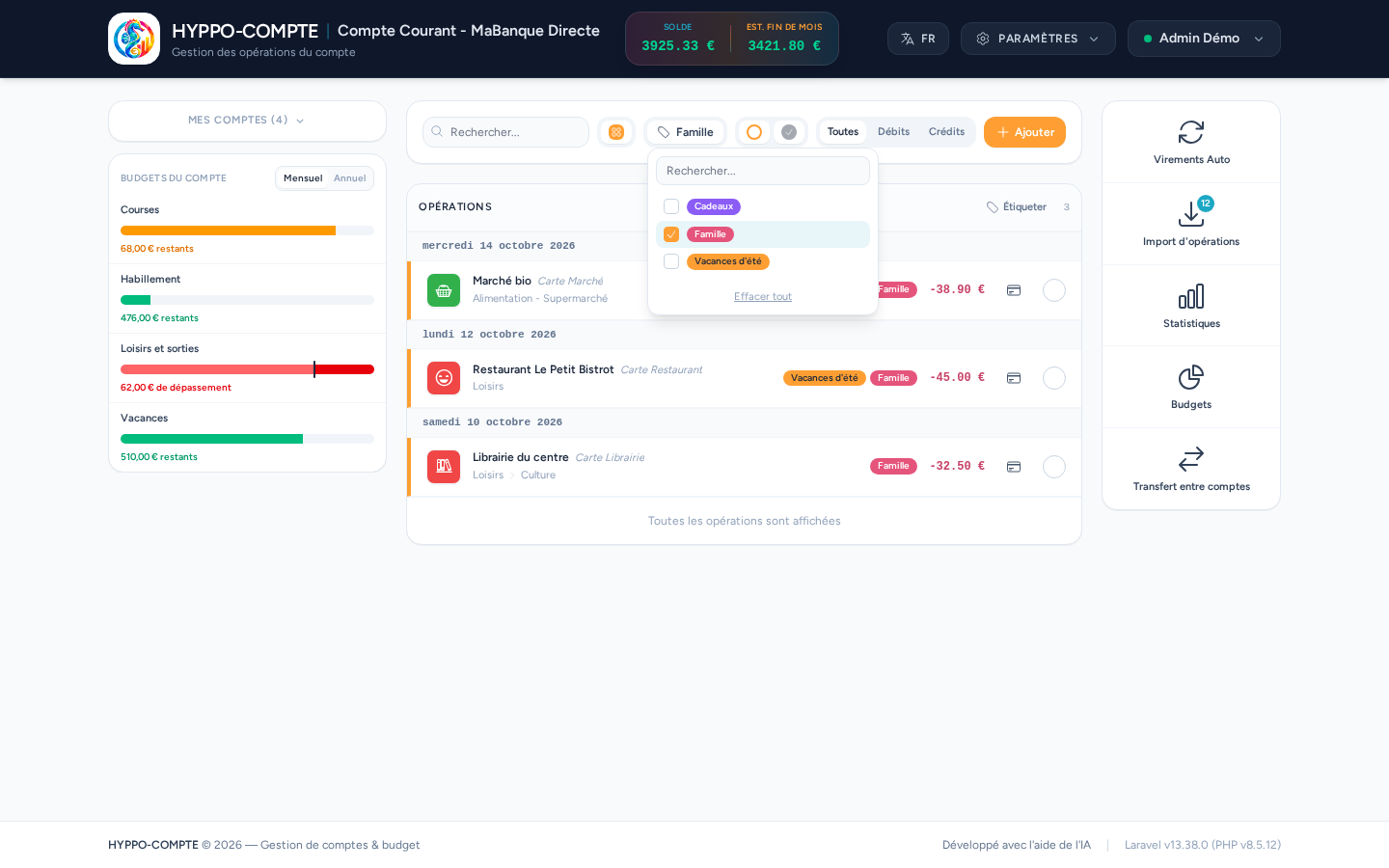
Tags
A tag marks operations that have something in common beyond their category: "Summer holidays", "Home renovation", "Gifts"… An operation has a single category, but can carry as many tags as needed, and you can then find every operation of a tag at once, across all accounts and categories.
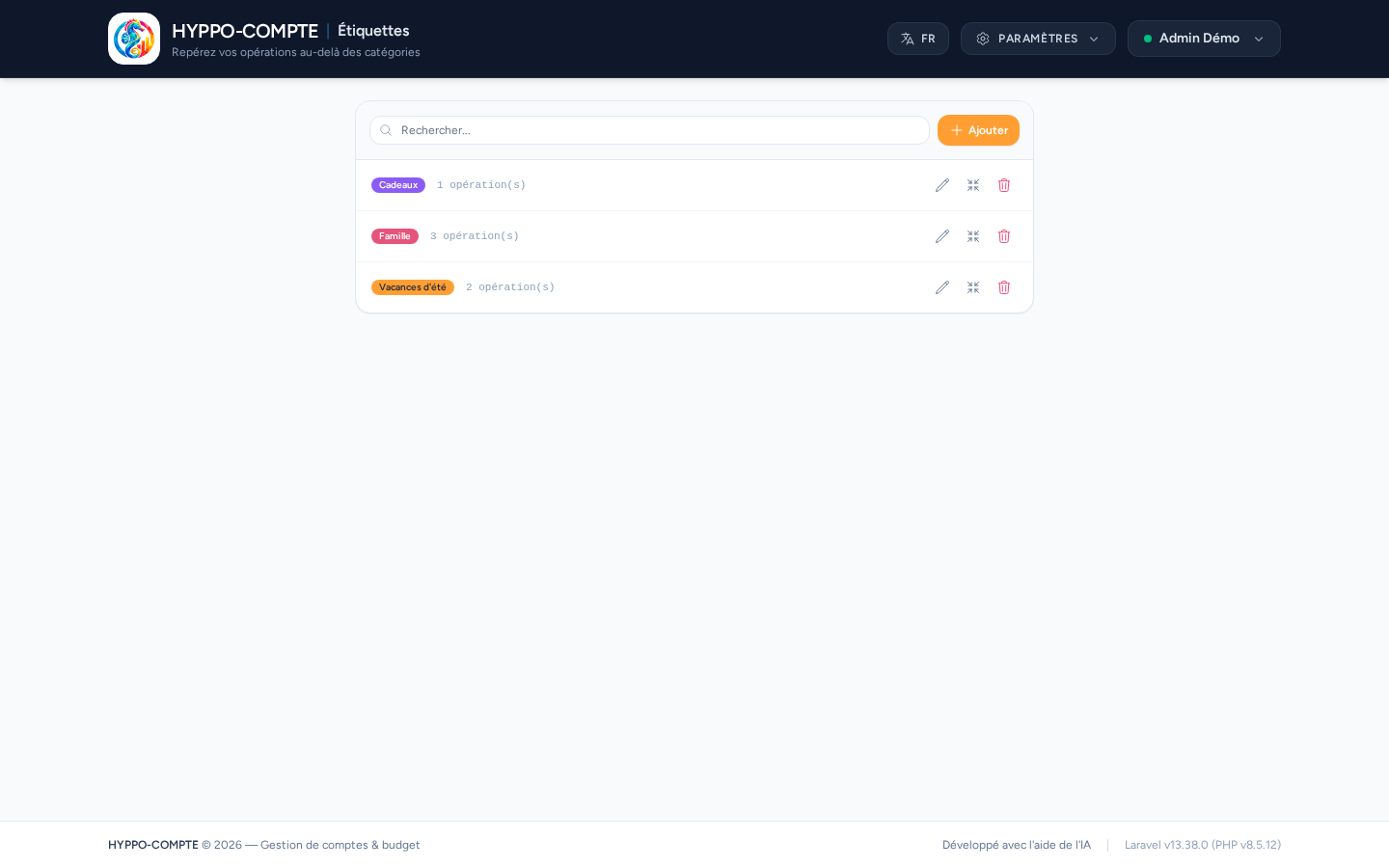
The Tags page in the menu lists every tag with the number of operations carrying it; clicking that number opens the statistics filtered on the tag.
Shared between all users
Like categories, tags are common to all users: tag names are visible to everyone, even though the operations they carry remain subject to account access.
Creating, editing, deleting
The Add button creates a tag: a name (50 characters at most, unique regardless of case and accents) and a color, with a preview of the pill. The pencil edits the tag, the bin deletes it after confirmation: operations are kept, only the tag is removed from them.
A tag can also be created straight from an operation (see below), with the color chosen at that moment, which you can change here afterwards.
Merging two tags
The merge button moves the operations of one tag onto another, then deletes the first. Handy to combine two spellings of the same subject ("Holidays" and "Summer holidays"). An operation that already carried both is not duplicated.
Tagging an operation
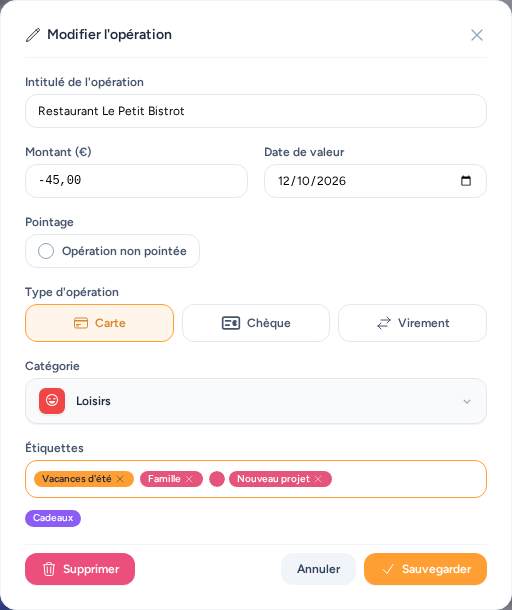
In an operation's form, the Tags field accepts several names: the existing tags are offered under the field, click one (or type to narrow them down), or confirm a new name with Enter (or a comma) to create the tag: a color dot then appears next to the name, to choose the color of the new tag before saving. Backspace removes the last one. In the account's list, tags are shown to the right of the operation's name, just before the amount.
Bulk tagging
The Tag all button, in the header of an account's operation list, adds or removes tags on every operation the filters display, including those not yet loaded. It is the way to catch up on existing data: filter, for instance, on a search or a category, then tag the result in one go.
The window's field starts with the tags that all these operations already carry. Adding a tag adds it everywhere; removing one from the field removes it from every operation. Existing tags are offered under the field. With no filter active, the whole account is targeted — the window always shows the number of operations concerned before you confirm.
Budget reserves, which are managed automatically, are never tagged.
Filtering by tag
The tag filter on the account page and the one in the statistics work the same way: tick one or several tags, and the operations carrying at least one of them are kept. An operation carrying several is only counted once.