
Categories
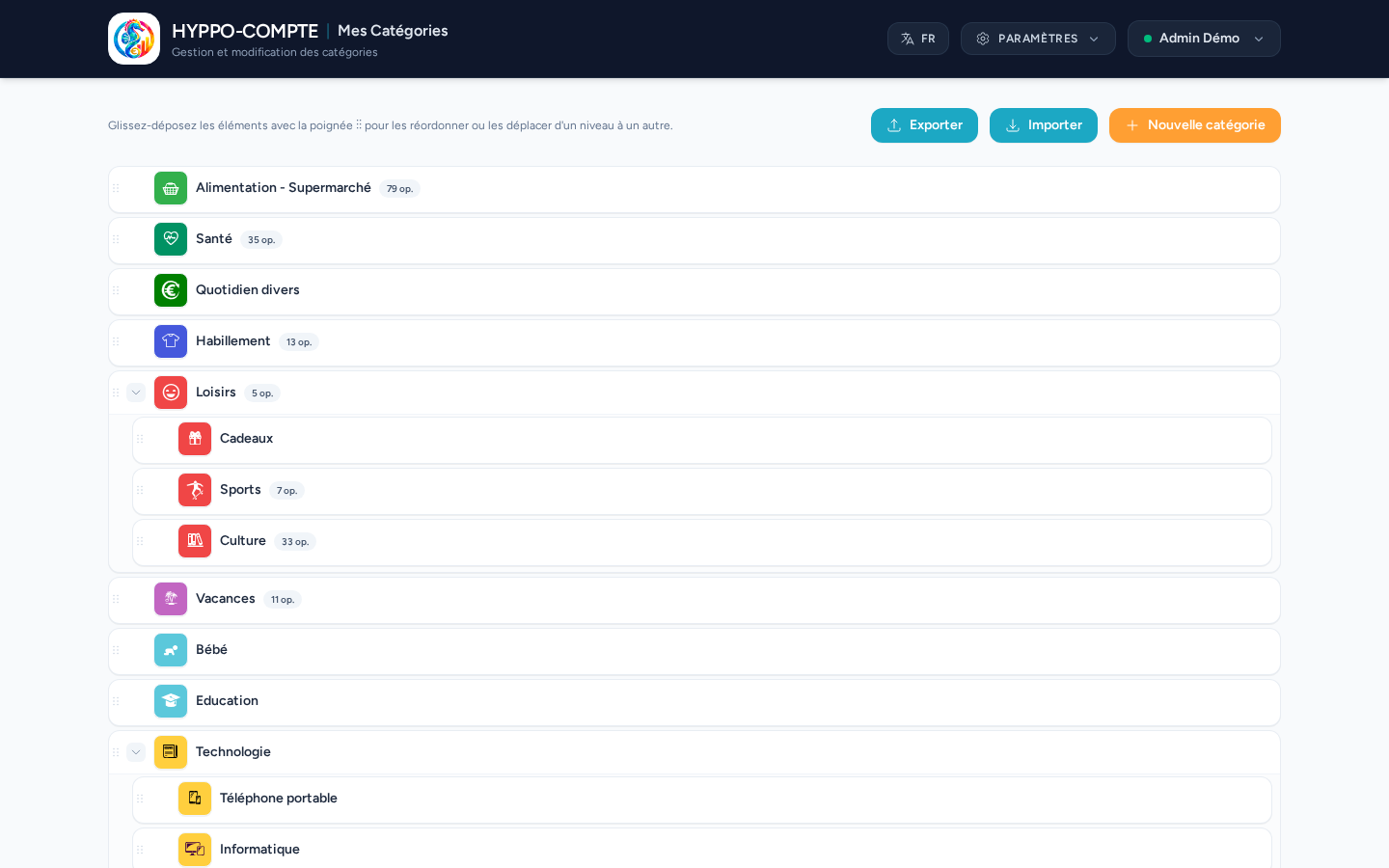
The Categories page lists all your operation categories, with their icon and the number of associated operations. Categories can be organized into subcategories: click a category's chevron to show or hide its children.
Reordering
Use the ⠿ handle to the left of each category to drag and drop it: this lets you change the display order, or move a category to make it a subcategory of another one (and vice versa).
Creating or editing a category
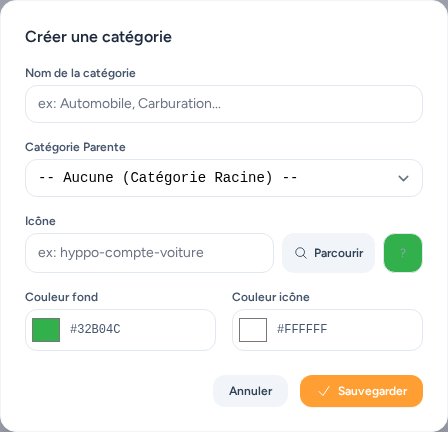
The New category button opens a form where you choose a name, an icon (from an icon library organized by theme), a background color and a text color. It also lets you set this category's parent if needed. This isn't required in this window: the attachment can also be done via drag and drop.
The edit button, shown when hovering over an existing category, opens the same form to edit it.
Deletion
The delete button for a category is shown when hovering over it.
If the category is used by operations, deleting it offers to reassign the existing operations to another category, so you never lose the history of your expenses.
Export / import
The Export and Import buttons let you save your entire category tree in JSON format, or restore it (useful for duplicating a configuration between two installations, or making a backup before a major reorganization).