
Import templates
Administrator access
This page is only visible to administrator users, from the Settings menu.
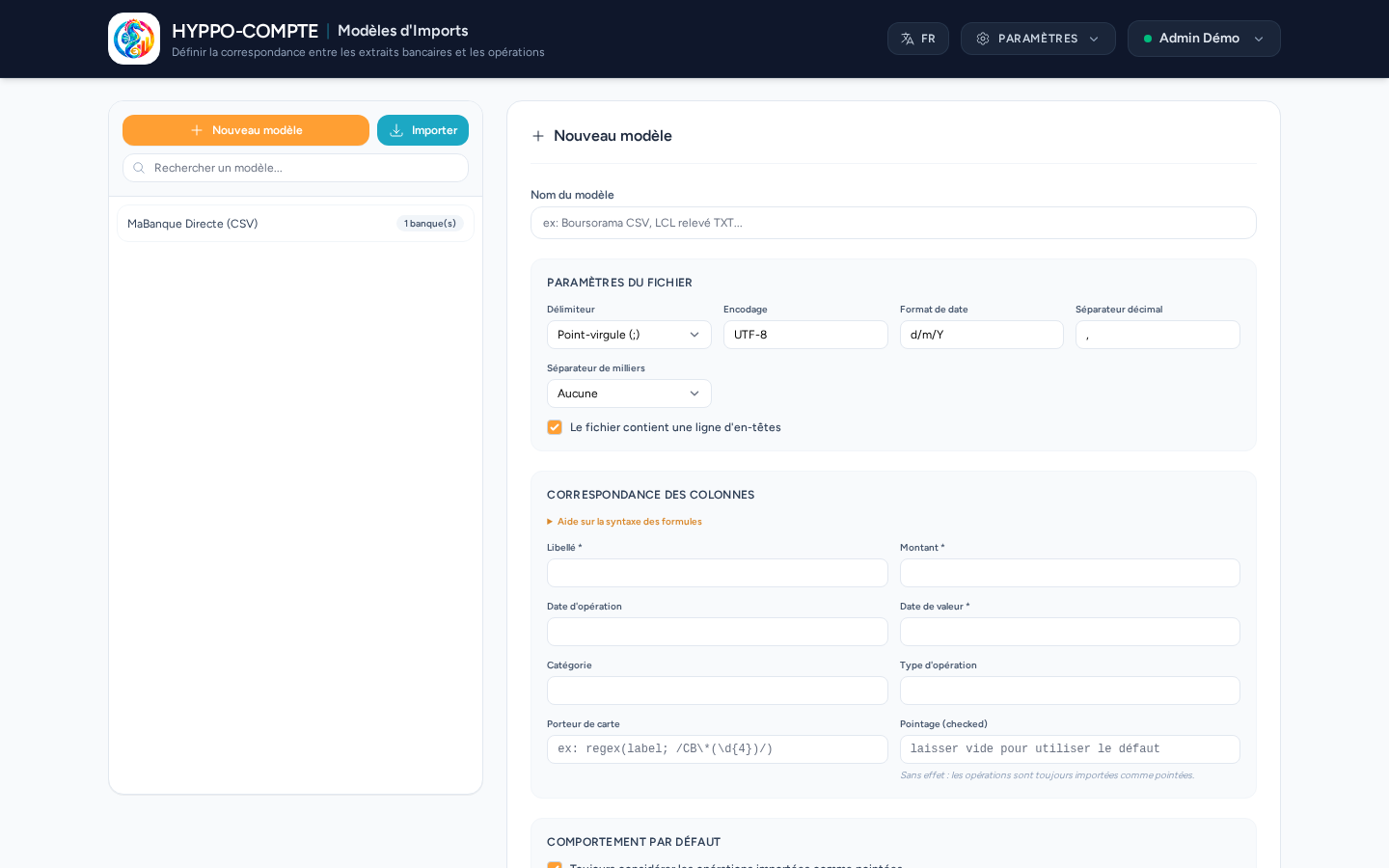
An import template describes how to read a bank statement file (delimiter, encoding, date format, decimal/thousand separators) and how to match its columns to an operation's fields (label, amount, dates, category, operation type, card owner, reconciled status). An option determines whether imported operations should be considered reconciled by default.
Formula fields
Each operation field (Label, Amount, Operation date, Value date, Category, Operation type, Card owner, Reconciled) is configured either with the exact name of a column in the file, or with a formula. If the file has no header row, columns are numbered automatically as col_1, col_2... in file order.
| Formula | Usage |
|---|---|
columnName | Direct reference to a column in the file. |
map(column; key=value; ...) | Matches an exact value of the column to an output value, e.g.: map(mark; Oui=1; Non=0). |
mapContains(column; key=value; ...) | Like map(), but looks for the key anywhere in the column's text. |
regex(column; /pattern/; optional_date_format) | Extracts part of the column via a regular expression, e.g.: regex(label; /CB\*(\d{4})/). |
coalesce(expr; expr; ...) | Returns the first non-empty result among several formulas. |
Label, Amount and Value date are required; the other fields are optional. A row where any of these three required fields finds no match in the file is not added to the queue (it could never become a valid operation anyway).
If the file has several columns sharing the same header, only the first one keeps its name as-is; the following ones are accessible as columnName_2, columnName_3...
Import / Export
The Import and Export buttons (visible on an existing template) let you save or reuse a template in JSON format.
Deletion
A template still used by at least one bank cannot be deleted — change the import template of the relevant bank(s) first.