
Dashboard
After logging in, you land on the dashboard: the list of all your active accounts, each showing its current balance and an estimate of the balance at the end of the month (including upcoming operations and scheduled automatic transfers).
Clicking the application logo in the top menu always brings you back to the dashboard.
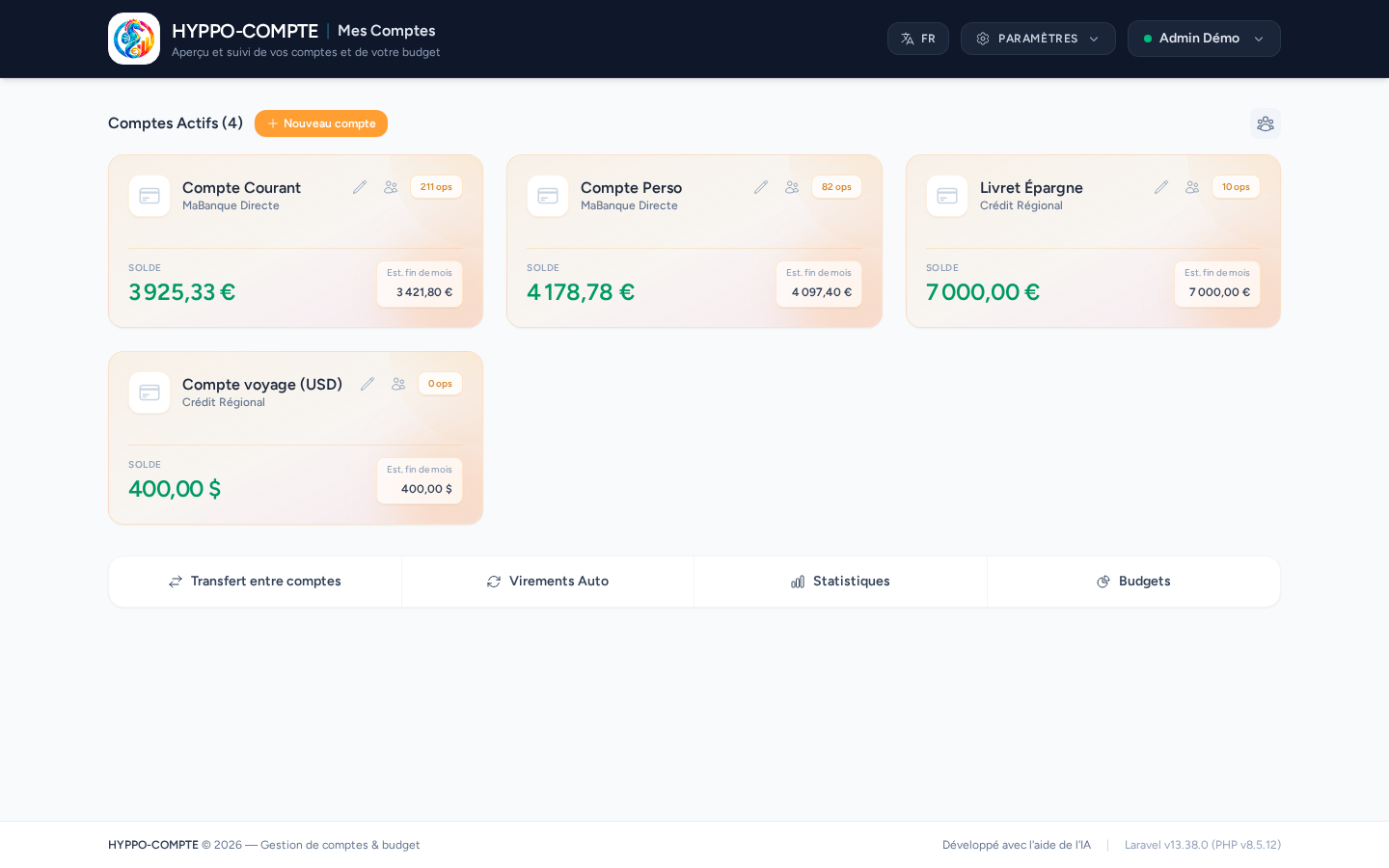
Actions available on an account
Each account card offers:
- the ✏️ icon to edit the account;
- the 👥 icon to manage access to the account (see below);
- a badge showing the number of operations.
The New account button at the top of the list lets you create a new bank account.
Adding or editing an account
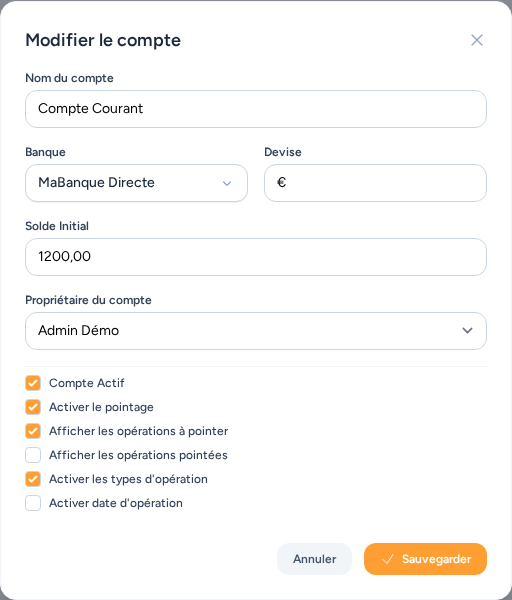
The account creation/editing page lets you set:
- Its name;
- Its bank;
- Its currency: enter the symbol, e.g. €;
- Its initial balance: if you plan to import or track all your operations, set it to 0; otherwise enter the initial balance, it will be added to the amount of your operations;
- Its owner: lets you change the account's owner among the site's users, mainly useful when importing data from Jeedom's accounts plugin (edit mode only — on creation, the account is automatically assigned to its creator);
- Its options:
- Active account: uncheck it when your account is closed; it will then be hidden across the site's pages, except on the Statistics page, which allows comparisons across several years even after an account has changed;
- Enable check-marking: if you want to mark your operations as reconciled. When this option is enabled, two new options let you set the default display, within the account, of reconciled and unreconciled operations (this setting can be changed on the fly from the account page, without affecting the default set here);
- Enable operation types: lets you distinguish whether an operation was made by card, cheque or transfer;
- Enable operation date: lets you track the operation date in addition to the value date, which is used by default.
Quick access
A quick-actions bar gives direct access to transfers between accounts, automatic transfers, statistics and budgets.
Sharing an account
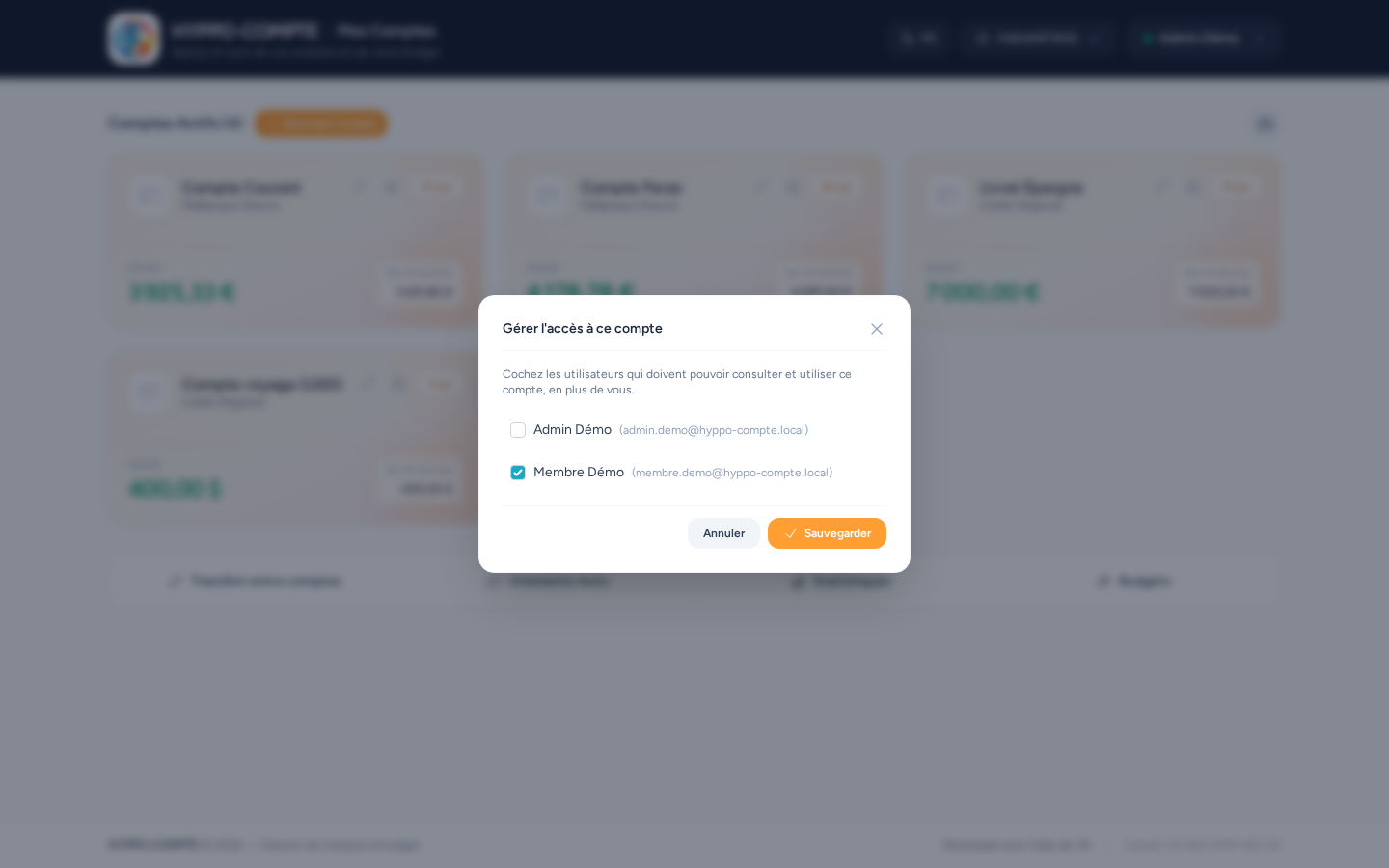
Clicking an account's 👥 icon opens the Manage access to this account window: check the other users who should be able to view and use this account, then click Save. Checked users will see this account appear on their own dashboard.
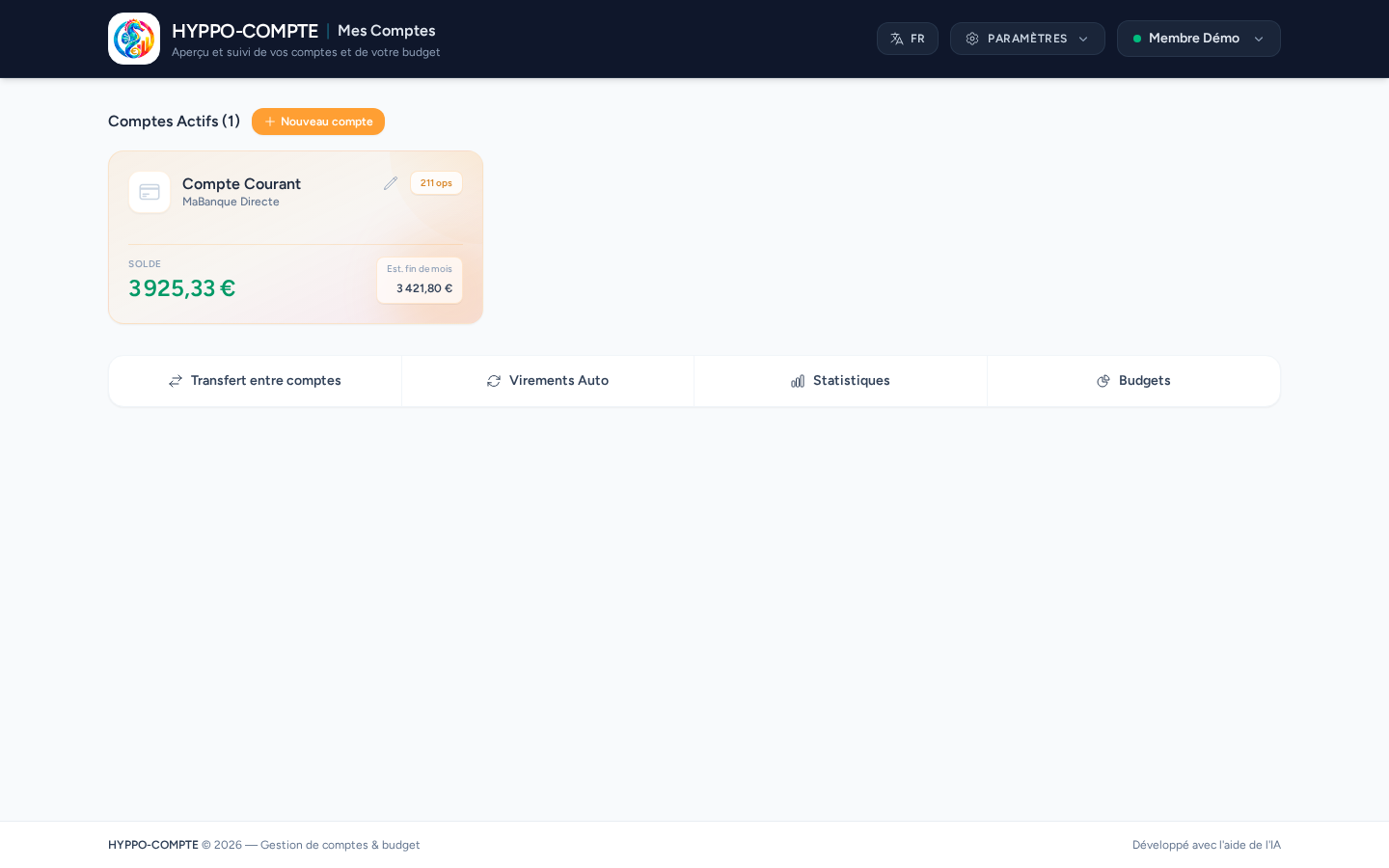
For the user the account is shared with, it simply appears in their own account list, with the same viewing and entry capabilities as the owner (except for managing the sharing itself, which is reserved to the account's owner).
Administrator access
Only an administrator can see every account, including those that are neither theirs nor shared with them. By default, the dashboard shows them only their own accounts (those they own and those shared with them); the user-group button (tooltip Show all accounts), to the left of the closed accounts button, shows every account in the database. It turns orange while active; another click (tooltip Show only my accounts) returns to the default view.
Show closed accounts
The eye button at the top right of the list (tooltip Show closed accounts, visible only when at least one closed account exists) lets you show or hide them, so you can still reach their settings. A badge shows how many there are; the button turns orange, with a crossed-out eye, while they are displayed.