
Importing operations
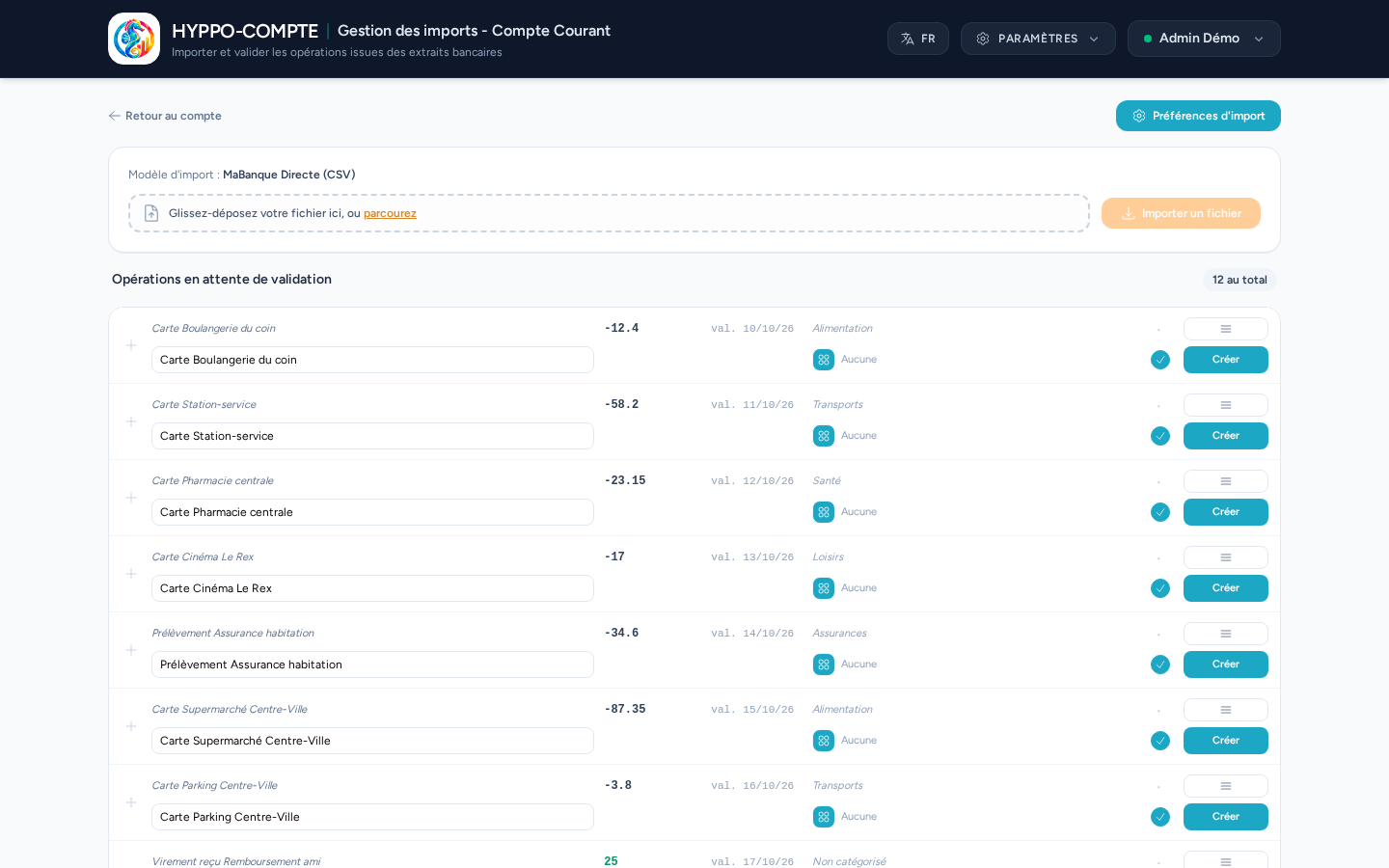
From an account's detail page, the Import operations shortcut (with a badge showing the number of lines awaiting validation) opens the bank statement import screen.
Import template required
Importing is only possible if an import template is configured on this account's bank: in fact, the Import operations shortcut only appears in the Services menu when that's the case. Reaching it anyway through a direct link shows a warning message instead of the drop zone, with a link to the Banks page to configure it.
Dropping a file
Drag and drop your bank statement file (.csv or .txt) into the provided zone, or click to select it manually, then confirm with Import a file.
Duplicates ignored automatically
Re-importing a file that's already been processed (in full or in part) does not create duplicate lines: each line is identified by its content — or, if the bank changed secondary columns between two exports (account balance, reconciliation status…), by its dates, amount and label — and a message summarizes how many lines were imported and how many duplicates were ignored.
Lines awaiting validation
Each detected line is displayed on two rows.
The first row shows the file's raw data as-is, not editable: the bank label, the amount, the value date, and the category suggested by the bank (plain text, not yet an actual application category).
The second row is the one you adjust before validating:
- the operation's name — pre-filled with a remembered preference for this label if you've already validated an identical one, otherwise with the raw label;
- the category, using the same picker as elsewhere in the application;
- the reconciled status, if this option is enabled on the account;
- the operation date and operation type can only be entered manually if the import template failed to determine them from the file — otherwise they're shown read-only, as determined by the import. The card owner, when detected, appears in the type icon's tooltip.
Merging with an existing operation
To avoid duplicates between an operation already entered manually and its counterpart in an imported statement, the application automatically looks, on the same account, for an existing operation with a similar amount and date. A match found is flagged with a dedicated icon and an orange background on the line, and the main button becomes Merge instead of Create.
Each line's ☰ menu lets you:
- choose a different candidate operation if several matches are possible on this account (for example two purchases of the same amount a few days apart);
- switch back to creation (Create an operation) if the suggested match isn't the right one;
- go back to the suggested merge (Back to merge);
- ignore the line, if it shouldn't be imported.
Import preferences
Every time a line is validated (created or merged), the association between its bank label and the chosen operation name/category is automatically remembered, to pre-fill future imports of the same label — no manual action is needed for this.
The Import preferences button opens the list of these associations: name and category remain editable directly in the table, a new preference can be added manually without waiting for an import, and the number of times each one has been used ("Views") helps spot the most reliable ones. A preference can be deleted individually, or purged in bulk when they've only been used once — usually noise from one-off operations.