
Budgets
The Budgets page lets you set an amount you don't want to exceed for one or more categories, and track month after month (or year after year) how much of it you have used.
You can reach it from the quick-access bar of the dashboard.
Creating a budget
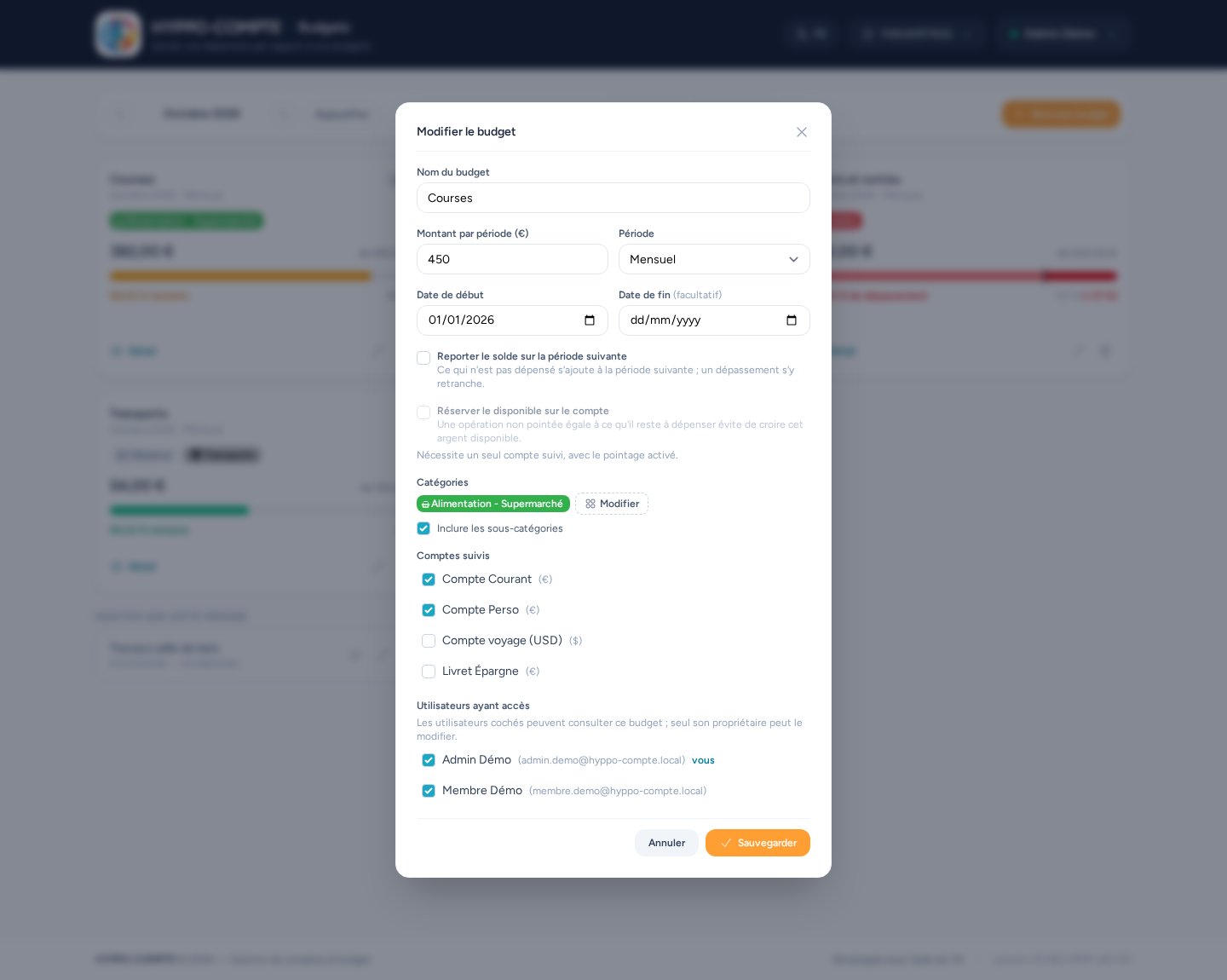
The New budget button opens the form:
- Budget name: free text (for example "Groceries").
- Amount per period: the amount allocated for one month or one year, depending on the chosen period.
- Period: Monthly or Yearly. Periods follow the calendar (from the 1st to the last day of the month, or from January 1st to December 31st).
- Start date and end date (optional): without an end date, the budget stays active until you delete it.
- Carry the balance over to the next period (optional): see Balance carry-over.
- Reserve the available amount on the account (optional): see Reserve on the account.
- Categories: one or more; Include subcategories automatically adds the subcategories of the chosen categories.
- Tracked accounts: one or more accounts whose operations feed the budget. Closed accounts only show up if you tick Show closed accounts: handy to rebuild a budget's history on a closed account.
- Users with access: you are ticked by default; see Sharing a budget.
One currency per budget
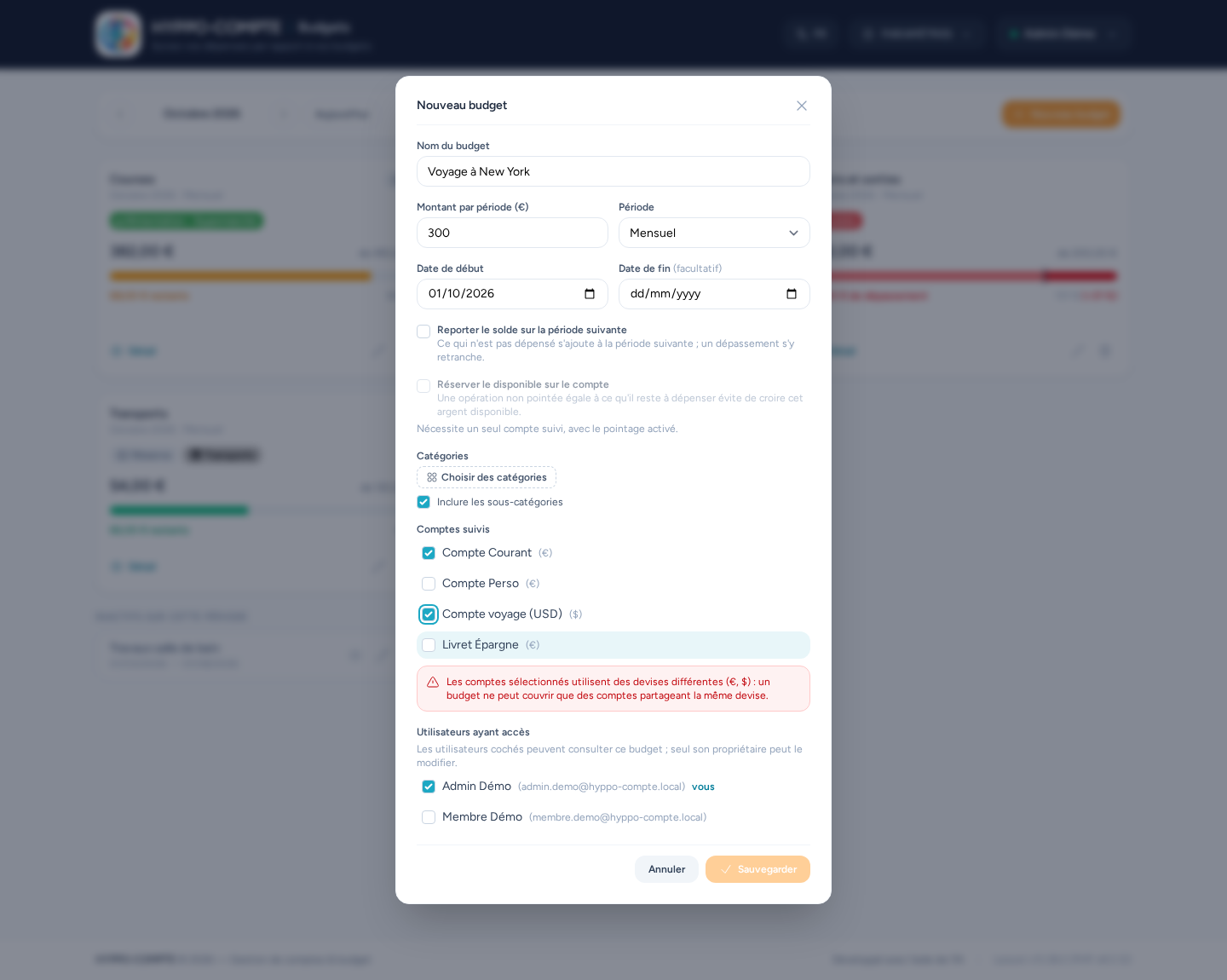
A budget adds up amounts: all tracked accounts must use the same currency. If you tick accounts with different currencies, a message names the currencies involved and saving is blocked.
Several budgets can track the same category: they are calculated separately and do not affect each other.
What is counted
The spent amount is a net balance: every operation of the tracked categories and accounts counts, whether it was entered, imported, or generated by an automatic transfer or a transfer between accounts. A credit (for example a refund) therefore reduces the amount spent.
An operation is placed in a period by its value date (or its operation date when no value date is set).
Only operations between the start date and the end date are counted. If the budget starts or ends part-way through a month, that first or last period is therefore partial, without the allocated amount being reduced pro rata.
Reading a budget
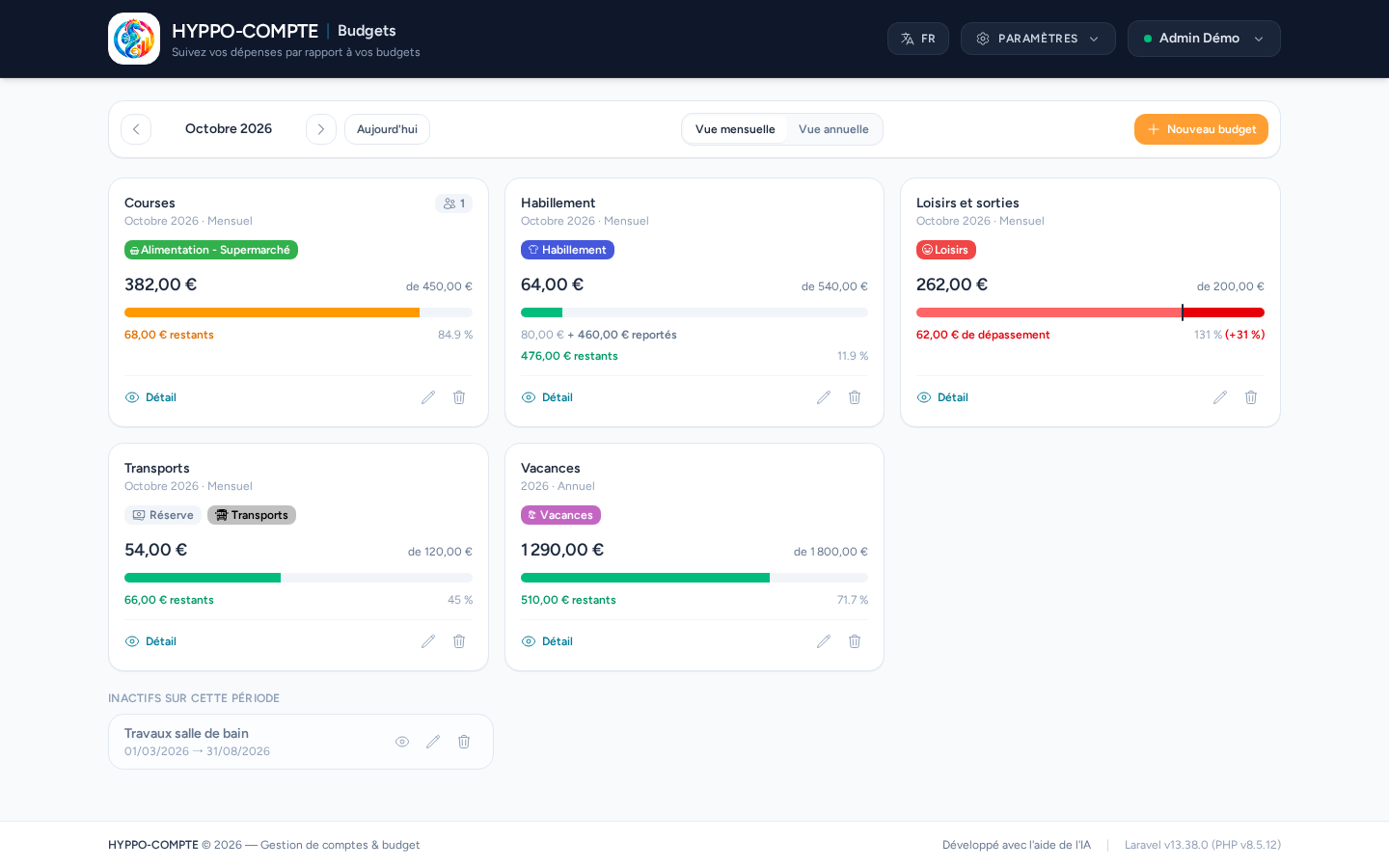
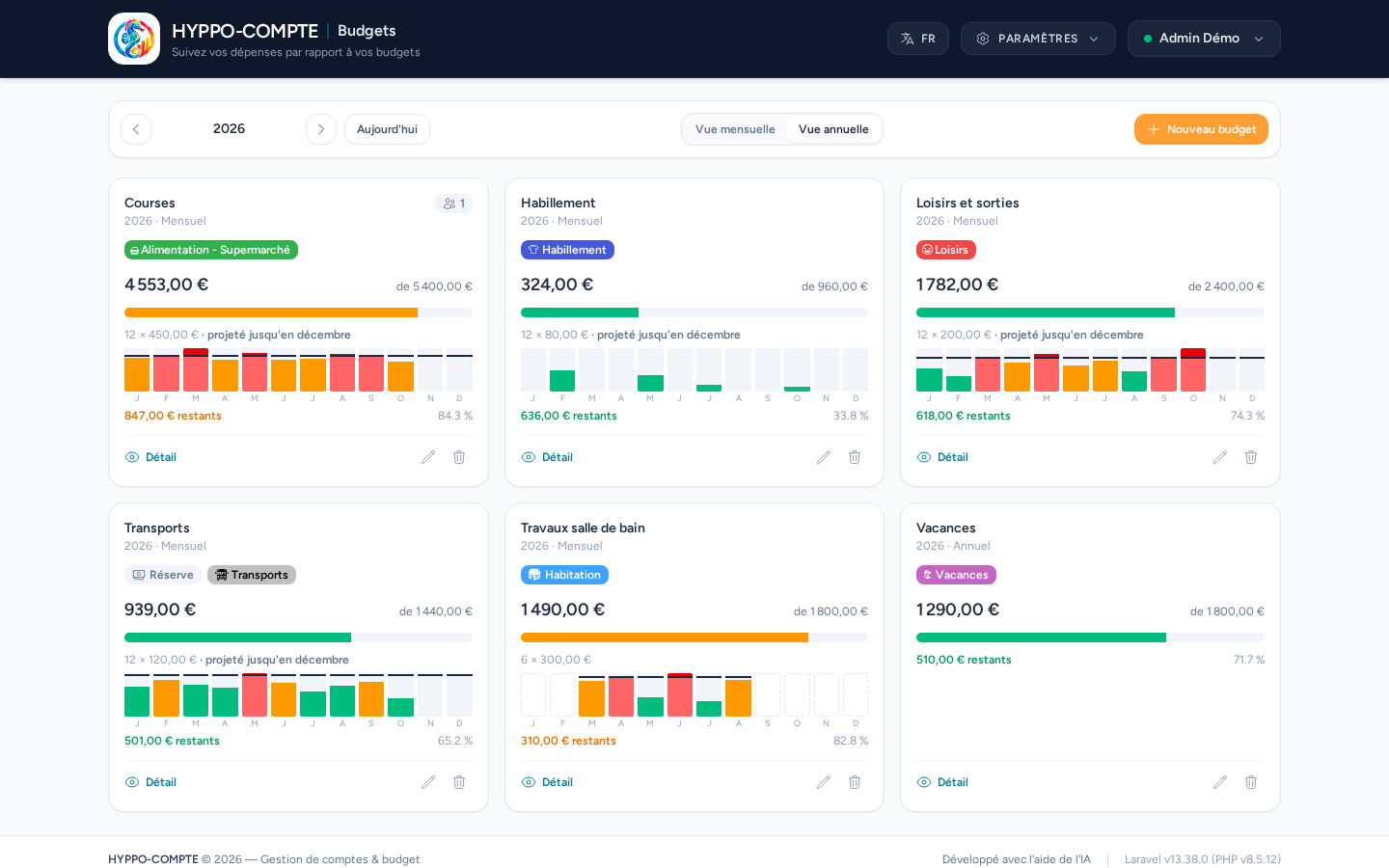
Each active budget is shown as a card with its categories (each preceded by its icon), the amount spent, the allocated amount, and a progress bar:
- green: under 80% of the budget;
- orange: between 80% and 100%;
- red: budget exceeded.
When a budget is exceeded, the bar changes scale: its full width then represents the amount actually spent, a vertical mark shows the budget limit, and the part beyond that mark is dark red. The percentage also shows the proportion exceeded, for example 121.2% (+21.2%).
Budgets that are not active on the displayed period (not started yet or already ended) are listed separately under Not active on this period.
Balance carry-over
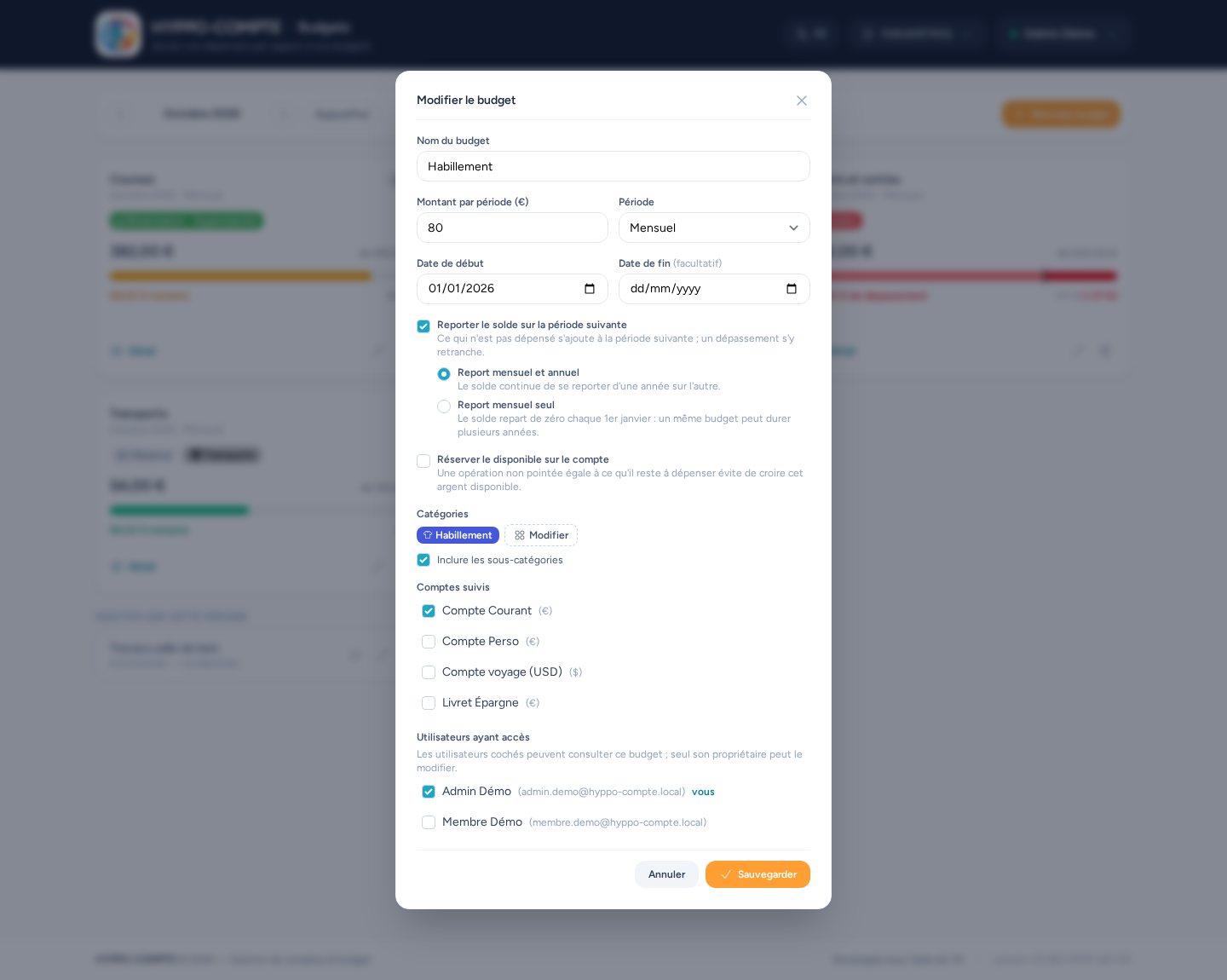
With the Carry the balance over to the next period option, what is not spent in a period is added to the next one, and an overspend is deducted from it. It is useful for irregular expenses (clothes, gifts…): you put a little aside each month, and a heavy month is not a failure.
Example: a budget of €80 per month. If you spend nothing in January, February has €160 available; if you then spend €200, March starts at −€40, that is €40 less than its usual amount.
- The carry-over is a net balance: surpluses and overspends add up, with no cap, from the budget's start date (a budget starting part-way through a month counts its first month in full).
- It works for monthly budgets (month to month) and yearly ones (year to year), and stops at the end date, if any.
- For a monthly budget, two modes to choose from in the form:
- Monthly and yearly carry-over: the balance keeps carrying over from one year to the next;
- Monthly carry-over only: the balance starts again from zero every January 1st. One budget can thus last several years without having to recreate a budget every year, and December's remainder (surplus or overspend) shows at the end of the year whether you went over, without weighing on the following year. A yearly budget is not concerned: its carry-over is, by definition, from one year to the next.
- The card shows the amount available and how it is made up, for example "€80.00 + €460.00 carried over"; the remainder and the progress bar are computed on that available amount.
- In yearly view, the year's allocated amount is that of the active months plus the balance carried into the year, and each month of the strip is measured against its own available amount.
- The carried balance is recomputed each time it is displayed: turning the option on or off also applies to the past, and editing an old operation updates the following periods.
Reserve on the account
A budget can make the money you have not spent yet look available. With the Reserve the available amount on the account option, it creates on its account a fictitious, visible but non-reconciled operation equal to what is left to spend in the current period (carry-over included). That money then shows in the "to reconcile" amount and in the end-of-month estimate, without touching the account's real balance.
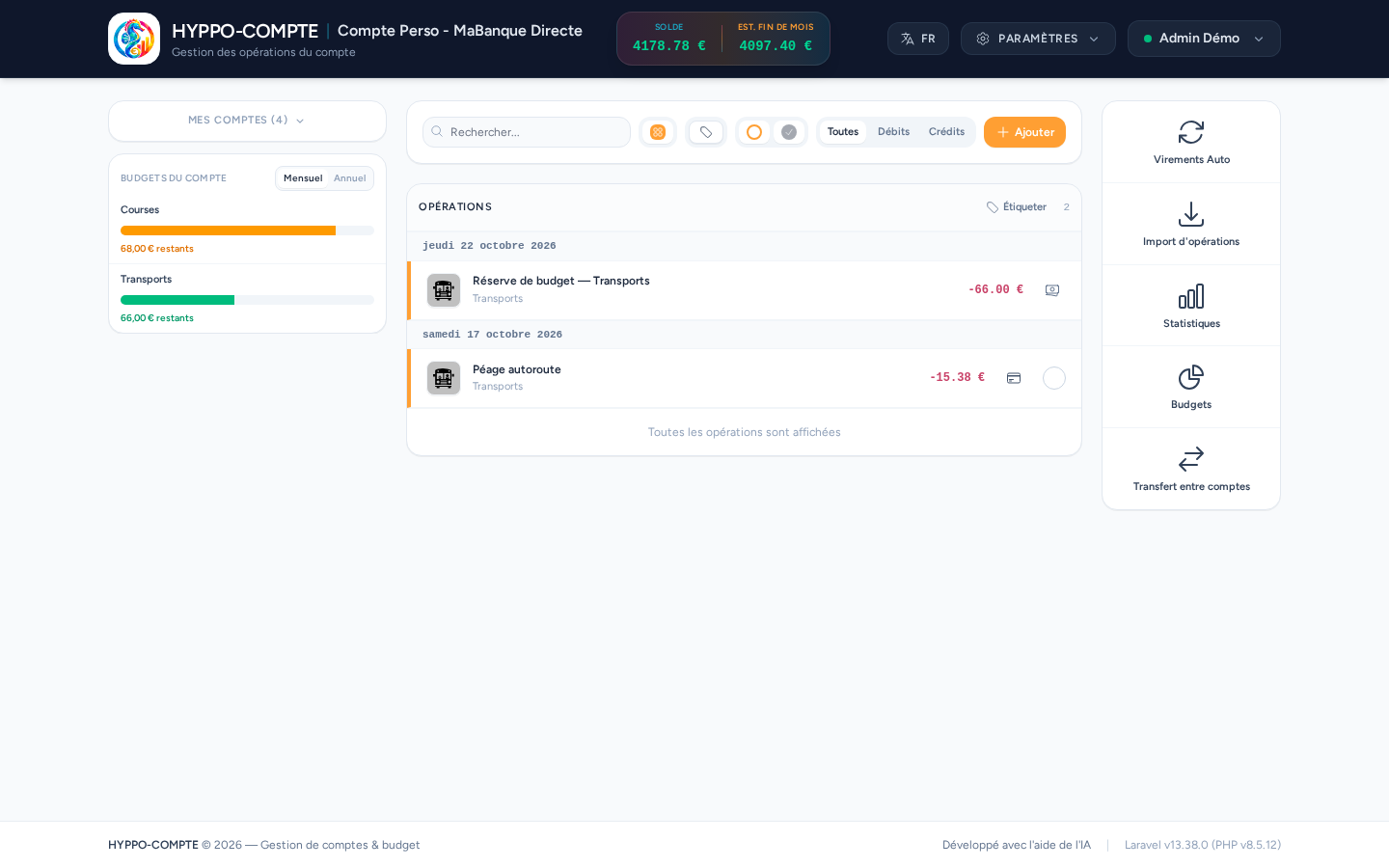
- Conditions: the budget tracks a single account, and reconciliation is enabled on it. Otherwise the checkbox is greyed out; disabling reconciliation on an account removes the option from the budgets that reserved there.
- Automatic update: the reserve shrinks as you spend (it is recomputed on every operation, and every night for period changes). It disappears when the budget is exceeded, outside its lifetime, or when you untick the option or delete the budget.
- System-managed operation: of the "Budget reserve" type, it cannot be created, edited, deleted or reconciled by hand. It is counted neither in budgets, nor in statistics, nor in the balance, and never matched with a bank import line.
- Reserve category: once the option is ticked, the form lets you pick a category for the reserve. It only changes its look on the account page (icon and colour), to tell the reserves of several budgets apart; the reserve is never counted as spending, even when it carries the category the budget tracks.
- Found by search: the account page search finds the reserve by its displayed label ("Budget reserve — Budget name"), with or without accents.
Budgets from an account page
On an account page, the left-hand column shows, below the list of accounts, an Account budgets block: the compact list of the active budgets tracking this account (name, progress bar and what is left in the current period). It stays fixed while you scroll the operations, and scrolls by itself when there are many budgets. A small Monthly / Yearly button at the top of the block switches all the budgets between the current period and the year (the allocated amount of a monthly budget is then that of the year, with the projection if any); a yearly budget is the same in both views, and your choice is remembered. Clicking one opens its details — in the same view as the block — where the Back to account link returns to the account page (not to the budgets list). The right-hand column has a Budgets shortcut to the budgets page, where the Back to account link returns to the account page you came from (it also follows you through a budget's details and back to the list).
Monthly and yearly views
The Monthly view / Yearly view switch and the arrows in the top bar let you move through time.
- Monthly view: each budget is shown on its own period — the displayed month for a monthly budget, the corresponding year for a yearly budget.
- Yearly view: all budgets are brought back to the year. For a monthly budget, the allocated amount is the monthly amount multiplied by the number of months in which the budget is active (a partial month counts as a whole one), and a 12-column strip shows the spending of each month.
- With an end date, only the months up to that date are counted.
- Without an end date, upcoming months are counted up to December: this is a projection at a constant amount, flagged as "projected until December".
In the strip, an exceeded month follows the same logic as the bar: the scale is shared by all months, a mark shows the monthly limit and the excess is dark red.
Budget details
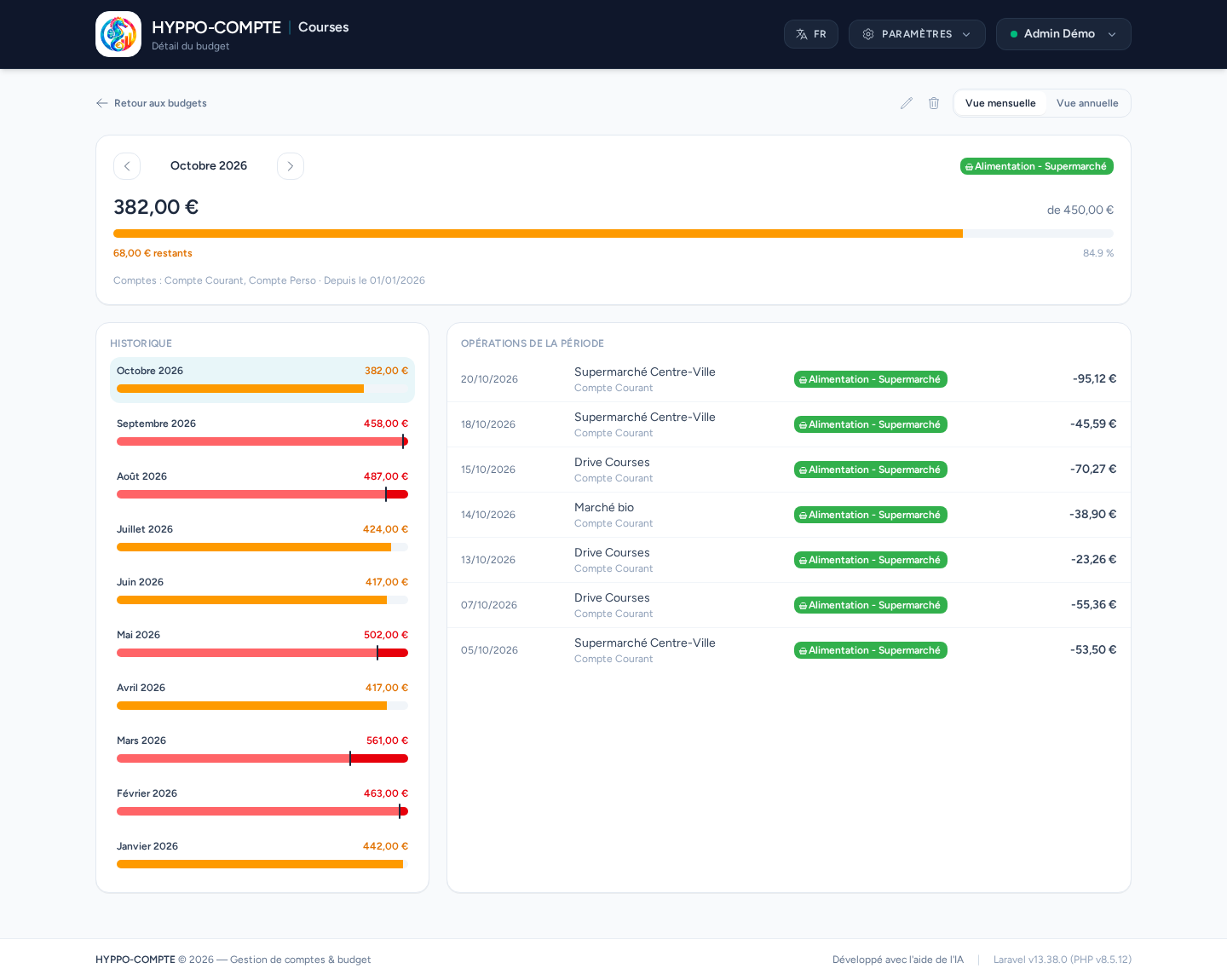
The Details button of a card opens the budget page: spending for the chosen period, the history of every past period (click a row to open that period), and the list of operations that were counted — handy to understand where an overrun comes from. Shortcut: clicking a budget's title in the list also opens its details, and double-clicking that title opens its edition.
If you are the budget's owner (or an administrator), the details offer Edit (pencil) and Delete (trash) buttons: editing opens the same form as in the list, and after a deletion you go back to the account you came from, or to the budgets list.
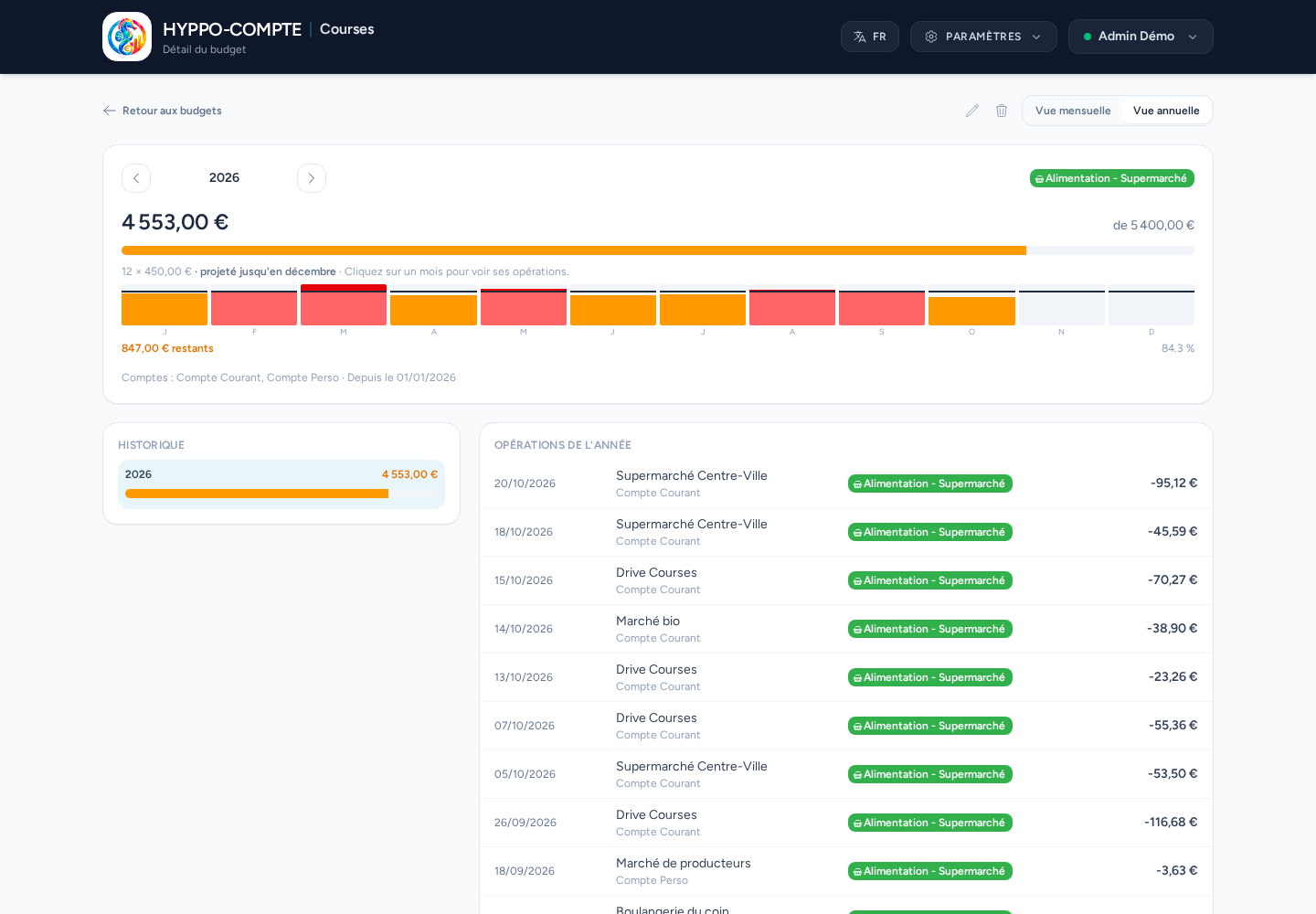
For a monthly budget, the Monthly view / Yearly view switch shows the details over the calendar year: the year's allocated amount (with the projection up to December if the budget has no end date), a 12-month strip — click a month to open it — a year-by-year history and the operations of the whole year. A yearly budget has a single view, already yearly. When you come from the yearly view of the list, the details open directly in yearly view.
Sharing a budget
In the form, Users with access lists every user: you are ticked by default when you create a budget, and at least one user must stay ticked to save. The ticked users see exactly the same figures as you, even if they don't have access to all the tracked accounts, because the accounts are attached to the budget itself.
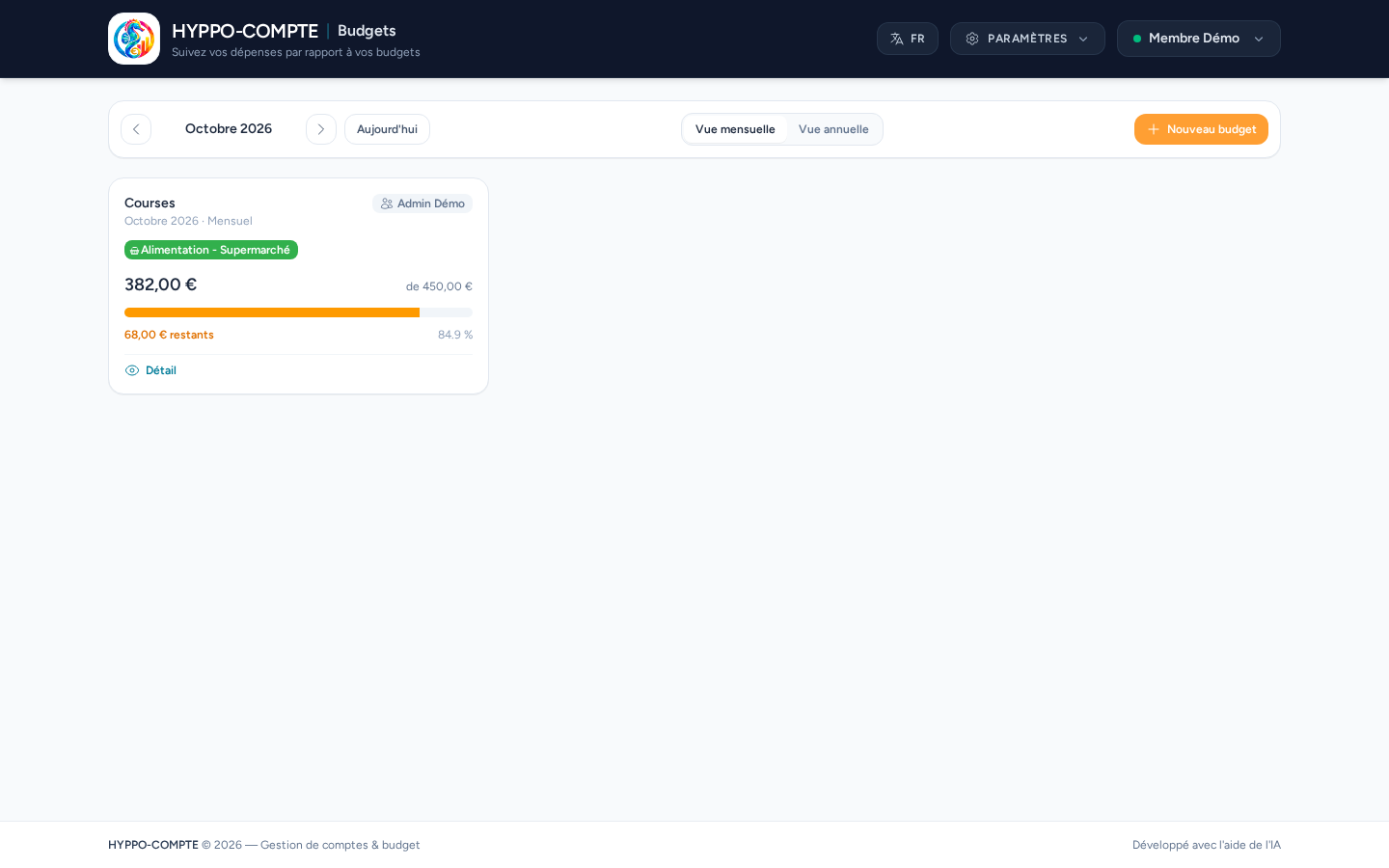
The other users see it read-only: only the budget's owner and administrators can edit it, delete it or change the list of users. A received budget shows its owner's name on its card.
Removing yourself from the list
If you untick yourself, you will no longer see this budget (administrators still see every budget): a confirmation is asked. The budget is then handed over to the first ticked user in alphabetical order, who becomes its owner and can edit and delete it.
Deleting a budget does not touch any operation.